
Gimkit Host: Quick Answer
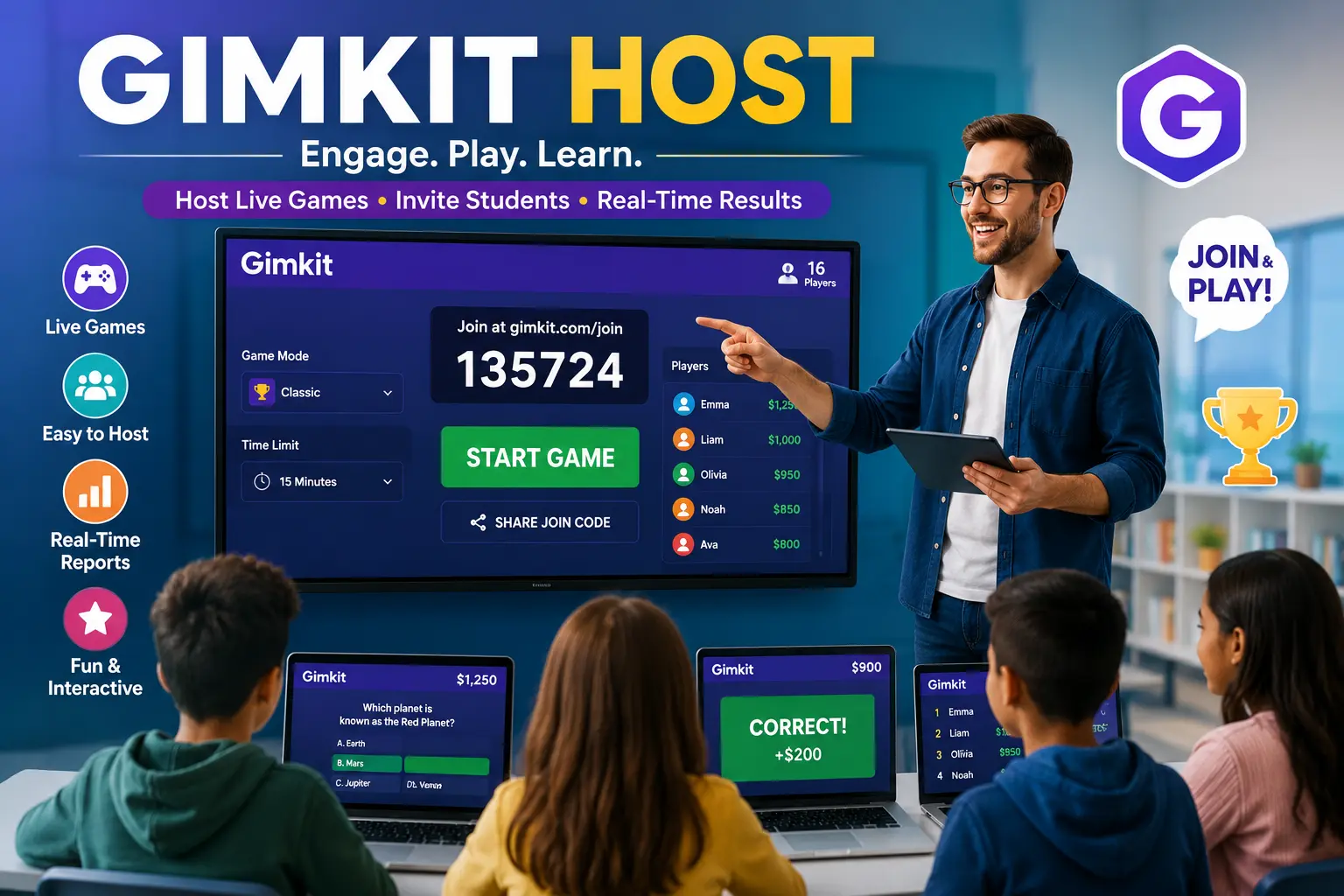
Gimkit Host is a feature that lets a teacher become the host of a live quiz game. After the host picks a quiz (called a “Kit”) and a game mode, he or she can adjust settings, share the code, and track the progress of quiz takers. Gimkit Host makes classroom activities more engaging by providing game play elements and instant feedback.
What Is Gimkit Host?
Gimkit Host is a game control center for live learning play on the Gimkit platform. Instead of just assigning a quiz, the host now leads a learning session in which quiz takers answer questions, earn virtual game money, and compete against each other or as teams.
Teachers commonly use Gimkit to make lessons more engaging in subjects such as:
- Mathematics
- Science
- English
- History
- Geography
- Languages
- Test preparation
Since everything is live, a teacher can manage execution, recognize learning gaps, and keep students participating and involved.
Who Can Use Gimkit Host?
Initially designed for teachers, anyone with a Gimkit account can try their hand on the feature. It is popular with
- Classroom teachers
- Tutors
- Schools
- Colleges
- Training instructors
- Study groups
What a Gimkit Host can do may depend on the free or paid version of Gimkit used.
How to Host a Gimkit Game
Once you login to your account, you’ll see your dashboard.
Step 1: Sign In
Log in to your Gimkit account and open your dashboard.
Step 2: Choose a Kit
Choose from any of your existing Kits or create a new Kit from scratch.
You can organize quizzes by subject, topic, or difficulty level to make future lessons easier to manage.
Step 3: Click “Host”
After selecting your Kit, click the Host button to begin setting up the live game.
This opens the hosting dashboard, where you’ll configure the game before students join.
Step 4: Select a Game Mode
Gimkit has a lot of different modes that creates a unique classroom experience with each.
Popular modes include:
- Classic
- Team Mode
- Trust No One
- The Floor Is Lava
- Fishtopia
- Snowbrawl
- Capture the Flag
Different modes encourage collaboration, competition, or strategy depending on your learning objectives.
Step 5: Customize Game Settings
You can change the time for each question, order the questions, or even choose the music.
- Time limit
- Question order
- Music and sound effects
- Student names
- Team options
- Power-ups (where available)
Choosing the right settings helps create a classroom experience that matches your lesson goals.
Step 6: Share the Join Code
Once everything is ready, Gimkit generates a unique game code.
Students simply:
- Visit the Gimkit join page.
- Enter the game code.
- Type their name.
- Join the live session.
As students enter, you’ll see the participant list update in real time.
Gimkit Host Settings Explained
The hosting dashboard gives teachers control over how each game runs.
Some of the most useful settings include:
Setting | Purpose |
Time Limit | Controls how long the game lasts |
Game Mode | Selects the learning experience |
Join Code | Allows students to enter the game |
Player List | Shows who has joined |
Team Options | Enables collaborative gameplay |
Question Order | Random or fixed sequence |
Music & Effects | Adjusts classroom atmosphere |
Spending a few minutes reviewing these settings before class can help ensure a smoother and more engaging session.
Best Gimkit Game Modes
Gimkit’s greatest strength is its variety of game modes. Each mode offers a different learning experience, making it easy to keep students engaged throughout the school year.
Classic
Classic mode is the easiest option and works well for daily classroom quizzes. Students answer questions individually, earn virtual currency, and purchase upgrades to increase their scores.
Best for:
- Daily review
- Homework review
- Quick assessments
Team Mode
Team Mode encourages collaboration by allowing students to work together toward a shared goal.
Best for:
- Group activities
- Classroom competitions
- Cooperative learning
Trust No One
Inspired by social deduction games, this mode combines quiz questions with teamwork and strategy.
Best for:
- Older students
- Classroom engagement
- End-of-unit review sessions
Fishtopia and Other Modes
Game modes like Fishtopia, Snowbrawl, and Capture the Flag add variety to classroom activities while reinforcing learning objectives through interactive gameplay.
Regularly rotating game modes helps maintain student interest and prevents lesson repetition.
Tips for Hosting Better Gimkit Games
Hosting a successful Gimkit session involves more than simply launching a quiz.
Here are a few practical tips:
- Choose questions that match your students’ skill levels.
- Keep game sessions between 10 and 20 minutes for maximum engagement.
- Explain the rules before starting.
- Encourage teamwork during collaborative modes.
- Review incorrect answers after the game.
- Mix different game modes throughout the semester.
- Monitor the live leaderboard without focusing only on top scores.
These small adjustments can improve participation and make learning more enjoyable.
Gimkit vs Kahoot vs Quizizz
Teachers often compare Gimkit to other popular classroom quiz platforms.
Feature | Gimkit | Kahoot! | Quizizz |
Live Classroom Games | ✔ | ✔ | ✔ |
Homework Assignments | ✔ | ✔ | ✔ |
Multiple Game Modes | ✔ | Limited | Moderate |
Student Currency System | ✔ | ✘ | ✘ |
Team Play | ✔ | ✔ | ✔ |
Real-Time Reports | ✔ | ✔ | ✔ |
Beginner Friendly | ✔ | ✔ | ✔ |
Each platform has its own strengths. Gimkit stands out for its game-like economy and interactive learning mechanics, while Kahoot! focuses on quick quizzes and Quizz offers flexible self-paced activities.
Frequently Asked Questions
1. What is Gimkit Host?
Gimkit Host is the feature that allows teachers or educators to launch and manage live quiz games for students.
2. Is Gimkit free?
Gimkit offers a free version with basic functionality, while additional features and game modes may require a paid subscription.
3. Can students host a Gimkit game?
In most classroom settings, games are hosted by teachers or account holders. Available features depend on account type and platform updates.
4. How do students join a Gimkit game?
Go to the official Student Gimkit join page, enter the game code provided by the host, and then type your name to enter the session.
5. Can Gimkit be used for homework?
Yes, teachers can assign kits as homework so students can complete quizzes outside of the classroom.
6. Which subjects work best with Gimkit?
Gimkit can be used for almost any subject, including math, science, English, geography, history, language learning, and exam preparation.
7. Does Gimkit work on mobile devices?
Yes, students can join the games using smartphones, tablets, laptops, or desktop computers with a supported web browser.
8. What is the best Gimkit game mode?
There’s no single best mode. Classic is ideal for quick quizzes, Team Mode supports collaboration, and themed modes like Fishtopia add variety and excitement.
Conclusion
Gimkit Host makes it easy for teachers to create engaging, interactive classroom experiences through live quizzes and educational games. With multiple game modes, customizable settings, and real-time student participation, it offers a flexible way to reinforce learning across a wide range of subjects. Whether you’re introducing new concepts, reviewing lessons, or preparing students for exams, understanding how to host a Gimkit game can help you make classroom activities more fun and effective.