
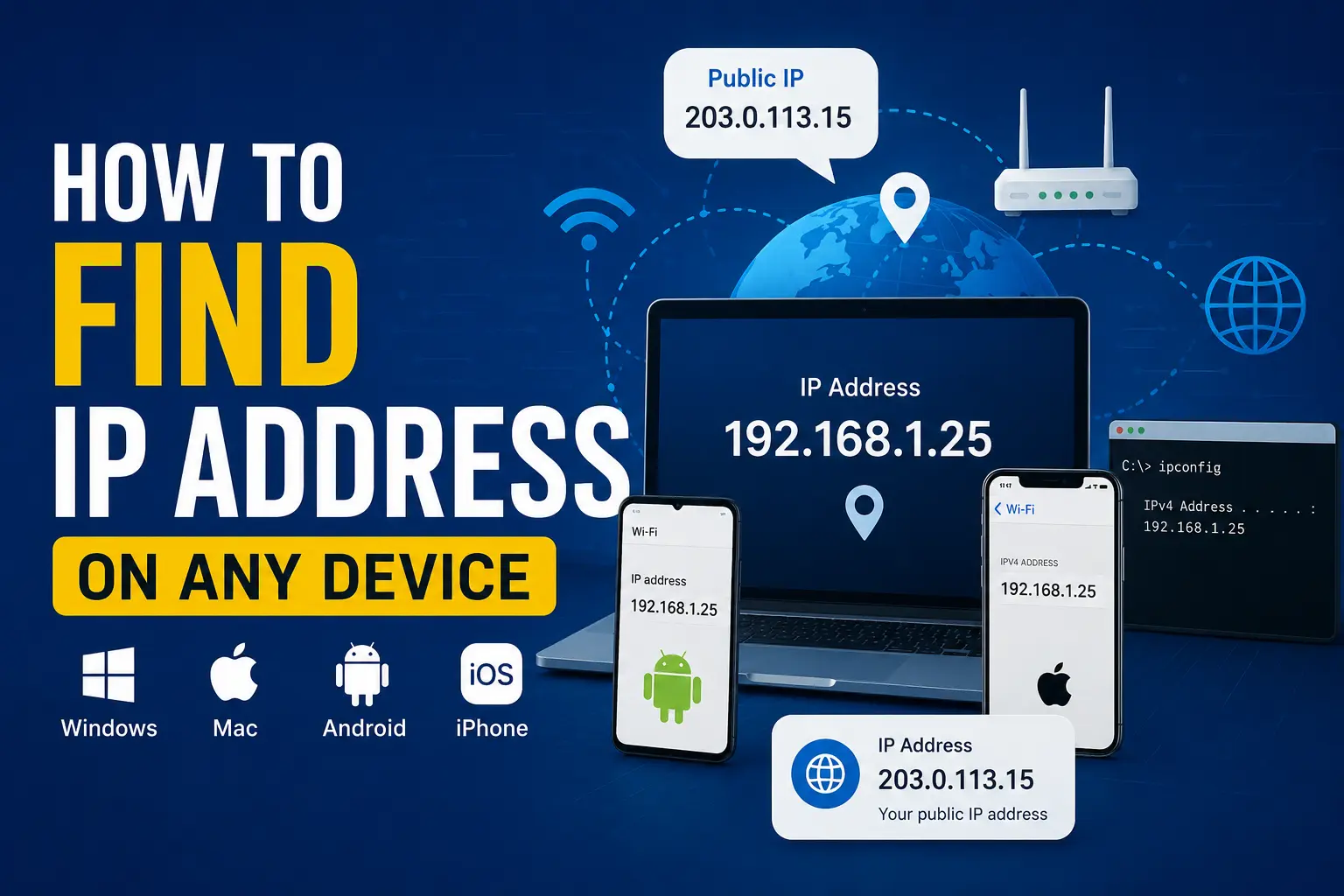
If you’re wondering how to find an IP address, the process is simple. You can view your device’s local IP address in your network settings or Command Prompt, and your public IP address by searching “What’s my IP?” in Google or using an online IP lookup tool. The exact steps depend on the device you’re using.
Whether you’re troubleshooting your internet, setting up a printer, hosting a game server, or connecting devices on the same network, knowing your IP address can be useful.
What Is an IP Address?
An IP (Internet Protocol) address is a unique number assigned to a device connected to a network. It helps devices identify and communicate with each other over the internet or a local network.
There are two main types:
Type | Purpose | Example |
Public IP Address | Assigned by your internet service provider (ISP) and visible on the internet | 203.0.113.15 |
Private IP Address | Assigned by your router for devices inside your home or office network | 192.168.1.25 |
Think of a public IP as your home’s mailing address, while a private IP is like the room number inside the house.
How to Find Your Public IP Address
Your public IP is the address websites and online services see.
The easiest methods are:
Method 1: Google Search
Open Google and search:
What’s my IP
Google usually displays your public IP at the top of the search results.
Method 2: Use an IP Lookup Website
Several trusted websites instantly display your public IP address along with basic network information, such as:
- IPv4 or IPv6
- Internet provider (ISP)
- Approximate location
- Country and region
Keep in mind that IP-based location is only an estimate and is not your exact address.
How to Find Your IP Address on Windows
Using Settings
- Open Settings.
- Select Network & Internet.
- Click your active Wi-Fi or Ethernet connection.
- Scroll to IPv4 Address.
Using Command Prompt
- Press Windows + R.
- Type cmd.
- Press Enter.
- Run:
ipconfig
Look for:
IPv4 Address
This is your local IP address.
How to Find Your IP Address on macOS
- Open System Settings (or System Preferences on older versions).
- Select Network.
- Choose Wi-Fi or Ethernet.
- Your IP address appears in the connection details.
You can also use Terminal:
ipconfig getifaddr en0
For Wi-Fi connections, this command usually returns your local IPv4 address.
How to Find Your IP Address on Android
The steps may vary slightly by manufacturer.
Generally:
- Open Settings.
- Tap Network & Internet or Connections.
- Open Wi-Fi.
- Tap your connected network.
- View the IP Address section.
Many Android phones also display:
- Gateway
- DNS
- MAC Address
- Network speed
How to Find Your IP Address on iPhone or iPad
- Open Settings.
- Tap Wi-Fi.
- Tap the ⓘ icon beside your connected network.
- Your IPv4 address appears under IP Address.
If your device uses IPv6, you’ll also see that information lower on the page.
How to Find the IP Address of a Website
Sometimes you need the IP address of a website instead of your own device.
Using Command Prompt
nslookup example.com
or
ping example.com
Both commands usually return the website’s IP address.
Keep in mind that many websites use content delivery networks (CDNs), load balancers, or cloud hosting. Because of this, the returned IP may not point to a single physical server.
How to Find Another Device’s IP Address on Your Network
If you want to locate another device connected to your Wi-Fi:
Check Your Router
Most routers list connected devices along with:
- Device name
- IP address
- MAC address
Use Network Scanner Apps
Popular network scanning tools include:
- Fing
- Advanced IP Scanner
- Angry IP Scanner
These tools help identify computers, phones, printers, smart TVs, and other connected devices.
IPv4 vs IPv6: What’s the Difference?
IPv4 | IPv6 |
32-bit address | 128-bit address |
Example: 192.168.1.1 | Example: 2001:db8::1 |
Most commonly used | Increasingly adopted worldwide |
Limited address space | Much larger address space |
Many internet connections now support both.
Why Would You Need to Know Your IP Address?
Knowing your IP address can help you:
- Fix internet connection problems.
- Set up remote desktop access.
- Configure gaming servers.
- Connect network printers.
- Set up port forwarding.
- Troubleshoot smart home devices.
- Manage routers and firewalls.
- Improve network security.
For most everyday users, it’s mainly useful when following setup guides or getting technical support.
Common Problems When Finding an IP Address
My IP keeps changing
Most internet providers assign dynamic IP addresses, which can change periodically or after restarting your router.
I see two different IP addresses
That’s normal.
- Your private IP identifies your device within your local network.
- Your public IP identifies your internet connection online.
My location is wrong
IP geolocation databases provide approximate locations. They often identify your ISP’s service area rather than your exact address.
Frequently Asked Questions
Is my public IP the same as my private IP?
No. Your public IP is assigned by your internet provider and is visible online. Your private IP is assigned by your router and is used only within your local network.
Can someone identify me using my IP address?
An IP address can reveal an approximate geographic area and your internet provider, but it does not normally reveal your exact home address.
Does restarting my router change my IP address?
Sometimes. If your ISP uses dynamic IP addresses, restarting the router may assign a different public IP. Static IP addresses usually remain the same.
How do I find someone else’s IP address?
You generally can’t see another person’s IP address unless you manage the network, administer a server they connect to, or have appropriate authorization.
Can two devices have the same IP address?
On the same local network, each device should have a unique private IP. However, many different home networks can use the same private IP ranges, such as 192.168.1.x.
Is an IP address different from a MAC address?
Yes. An IP address identifies a device on a network, while a MAC address uniquely identifies the device’s network hardware.
Does using a VPN change my IP address?
Yes. A VPN replaces your visible public IP with one from the VPN server, helping improve privacy and access to region-specific content.
Can I manually change my IP address?
Yes. You can change a private IP in your device’s network settings, while changing your public IP depends on your ISP or by using a VPN or proxy.
Conclusion
Learning how to find an IP address is straightforward once you know where to look. Whether you’re checking your public IP online, viewing your local IP on Windows, Mac, Android, or iPhone, or finding a website’s IP address with network tools, the process only takes a few minutes.
If you’re troubleshooting a network, setting up connected devices, or simply curious about your internet connection, understanding the difference between public and private IP addresses will help you solve problems more quickly and confidently.